whatsapp: +351967396201
How to Use Sketchware on Windows, Mac, and Linux
search for Sketchware for PC download, Sketchware for Windows 10, Sketchware for desktop, Sketchware EXE, and Sketchware on Windows
Sketchware
6/23/202611 min read
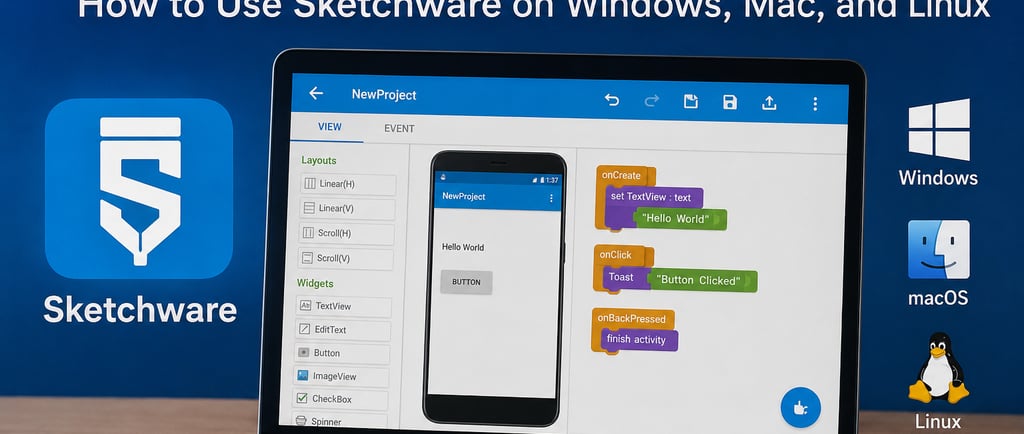
Sketchware for PC Download: How to Use Sketchware on Windows, Mac, and Linux
Sketchware is one of the most popular visual app development tools for beginners who want to create Android apps without writing full code from scratch. Many users search for Sketchware for PC download, Sketchware for Windows 10, Sketchware for desktop, Sketchware EXE, and Sketchware on Windows because they want to build Android apps on a bigger screen instead of using only a mobile phone.
The important thing to understand is this: Sketchware was mainly created as an Android app. That means there is usually no official Sketchware EXE file like normal Windows software. However, you can still use Sketchware on PC by installing it through an Android emulator. This method allows you to run Sketchware on Windows, Mac, or Linux and create Android apps from your computer.
In this guide, you will learn how Sketchware works on PC, how to download Sketchware for Windows, how to use Sketchware on desktop, how to edit source code, how to create Firebase login apps, how to build games, music players, PDF reader apps, WebView apps, and more.
What Is Sketchware?
Sketchware is a mobile app development platform that lets users create Android apps using visual blocks. Instead of writing long Java code manually, users can drag, drop, and connect logic blocks to create app functions.
With Sketchware, beginners can create:
WebView apps
Quiz apps
Music player apps
Messaging apps
Firebase login apps
PDF reader apps
Flashlight apps
Game apps
File manager apps
Gallery apps
Simple business apps
Educational apps
Sketchware is useful because it makes Android app development easier for people who are not professional programmers.
Can You Download Sketchware for PC?
Many people search for Sketchware for PC download, but Sketchware is not usually available as a normal Windows EXE desktop program. It is mainly an Android application.
That means you cannot install Sketchware on Windows like Microsoft Word, Photoshop, or Chrome. Instead, you need an Android emulator. An emulator creates an Android environment on your PC, allowing you to install and use Android apps.
So the answer is:
Yes, you can use Sketchware on PC, but usually through an Android emulator.
Is There a Sketchware EXE File?
Many users search for Sketchware EXE. However, you should be careful with random EXE files claiming to be Sketchware. Some unofficial EXE files may contain malware, unwanted ads, or fake installers.
The safer method is:
Install a trusted Android emulator
Download Sketchware APK from a trusted source
Install Sketchware inside the emulator
Use it like an Android app on your PC
Avoid unknown “Sketchware EXE download” websites unless you fully trust the source.
How to Download Sketchware for Windows 10
To use Sketchware on Windows 10, follow these steps:
Download an Android emulator.
Install the emulator on your Windows PC.
Open the emulator.
Sign in with your Google account if needed.
Download the Sketchware APK.
Install the APK inside the emulator.
Open Sketchware and create your first project.
This method also works for many users searching for:
Sketchware for Windows 10
Sketchware for Window 10
Sketchware on Windows
Sketchware PC app
Sketchware for desktop
Sketchware for Windows 7
Some users also search for Sketchware for Windows 7 or Sketchware for Windows 7 OS. You may still be able to use Sketchware on Windows 7 through older Android emulators, but performance can be limited.
Windows 7 is outdated, so some modern emulators may not work properly. If possible, use Windows 10 or Windows 11 for better performance.
Sketchware for Mac
Sketchware can also be used on Mac through an Android emulator. The process is similar to Windows.
Basic steps:
Install an Android emulator for Mac.
Open the emulator.
Install Sketchware APK.
Create a new Sketchware project.
Mac users should check emulator compatibility before downloading.
Sketchware for Linux
Linux users can also run Android apps using supported Android emulators or Android compatibility layers. However, setup may be more technical compared to Windows.
If you are a Linux beginner, using Sketchware on an Android phone may be easier. If you are comfortable with Linux, then emulator-based setup can work.
Sketchware for PC Online
Some people search for Sketchware for PC online. At the moment, Sketchware is not commonly used as a full browser-based online app builder. It is mainly used as an Android app.
If you want a browser-based app builder, you may need to use other no-code or low-code platforms. But for Sketchware itself, the common method is still Android or emulator usage.
Sketchware Like Software for PC
If you want software like Sketchware for PC, you can try other visual or beginner-friendly app builders.
Popular alternatives include:
MIT App Inventor
Kodular
Android Studio
Thunkable
AppGyver
FlutterFlow
Sketchware is easier for Android beginners, but Android Studio is better for professional development.
Sketchware How to Use
Using Sketchware is simple once you understand the basic workflow.
The basic process is:
Create a new project.
Design the app layout.
Add widgets like buttons, text, images, lists, and WebView.
Add logic using blocks.
Test the app.
Export APK.
Install or share the app.
This makes Sketchware useful for students, beginners, small creators, and people who want to learn Android development visually.
Sketchware Layouts
Layouts are the foundation of your app design. In Sketchware, layout controls how your app screen looks.
Common layout options include:
LinearLayout
RelativeLayout
ScrollView
GridView
ListView
Horizontal layout
Vertical layout
A clean layout makes your app easier to use.
Sketchware Relative Layout
RelativeLayout allows you to position views based on other views or screen areas. It is useful when you want more flexible design control.
You can use RelativeLayout for:
Login screens
Profile pages
Dashboard design
Floating buttons
Custom app interfaces
Sketchware Layout Gravity
Gravity controls the position of content inside a view or layout. For example, you can align text to the center, left, right, top, or bottom.
Common uses:
Center a button
Align text
Position icons
Create clean cards
Improve UI balance
Sketchware Padding
Padding creates space inside a view. Good padding makes your app look cleaner and more professional.
Use padding for:
Buttons
Text boxes
Cards
Forms
List items
Profile sections
Do not make everything too tight. Apps need breathing space.
Sketchware Round Corner
Round corners are useful for modern app design. You can use round corners on buttons, cards, images, input boxes, and dialogs.
Round corners help create:
Modern UI
Soft card design
Better buttons
Clean dashboards
Professional screens
Sketchware FAB
FAB means Floating Action Button. It is usually a circular button floating above the layout.
Common FAB uses:
Add new note
Create new task
Send message
Upload file
Start chat
Open menu
A FAB is useful when there is one main action on the screen.
Sketchware Widgets
Widgets are the visual elements users interact with. Sketchware widgets include buttons, TextView, EditText, ImageView, WebView, ListView, GridView, Spinner, CheckBox, RadioButton, and more.
Common widgets:
Button
TextView
EditText
ImageView
WebView
ListView
GridView
Spinner
RadioButton
Learning widgets is one of the first steps in Sketchware.
Sketchware Radio Button
Radio buttons are used when users need to choose only one option from a group.
Example uses:
Gender selection
Quiz answers
Payment method
Category choice
Settings option
For quiz apps, radio buttons are very useful.
Sketchware Quiz App
A quiz app is one of the best beginner projects in Sketchware. You can create multiple questions, answer options, score counting, and result screens.
Basic quiz app features:
Question text
Multiple choice answers
Radio buttons
Next button
Score system
Result page
Correct answer logic
You can make the quiz offline or connect it with Firebase.
Sketchware Firebase Login
Firebase login is a popular Sketchware feature. It allows users to register and log in using online authentication.
A Firebase login app may include:
Register screen
Login screen
Email field
Password field
Forgot password
User database
Profile screen
Firebase login is useful for chat apps, shopping apps, dashboard apps, and membership apps.
Sketchware Send Data Firebase
Sending data to Firebase means saving user information online. This is useful for apps that need cloud storage.
You can send:
User name
Email
Messages
Orders
Notes
Scores
Feedback
Product data
Firebase makes Sketchware apps more powerful because data can be saved and updated online.
Sketchware Messaging App
A messaging app can be created using Sketchware and Firebase. Start with a simple one-room chat app before building private messaging.
Basic features:
User login
Message input
Send button
Message list
Firebase database
Timestamp
User name display
For advanced messaging, you can add profile pictures, online status, typing indicator, and private chat.
Sketchware Push Notifications
Push notifications help you send alerts to app users. They are useful for chat messages, news updates, reminders, orders, and app announcements.
Common uses:
New message alert
Order update
Reminder notification
App update
News alert
Marketing message
Push notifications may require Firebase Cloud Messaging or custom integration.
Sketchware Intent
Intent is used to move between activities or open external actions.
You can use intent to:
Open another screen
Open a website
Open another app
Share text
Make a call
Send email
Open file manager
Intent is one of the most useful concepts in Android app development.
Sketchware GetExtraKey
GetExtraKey is related to passing data between screens using intent extras.
Example:
Screen 1 sends a user name.
Screen 2 receives and displays that user name.
This is useful for:
Product detail pages
User profile pages
Quiz result pages
Order detail pages
Chat screens
Sketchware New Activity
An activity is a screen in an Android app. If your app has multiple pages, you need multiple activities.
Examples:
Home activity
Login activity
Register activity
Profile activity
Settings activity
Product detail activity
Creating a new activity helps organize your app better.
Sketchware New Screen
Many beginners search for Sketchware new screen. In Android, a new screen is usually a new activity.
You can create:
Welcome screen
Login screen
Dashboard screen
Details screen
About screen
Contact screen
Use intent to move from one screen to another.
Sketchware Rename Activity
Renaming an activity helps keep your project organized. Use clear names like LoginActivity, HomeActivity, ProfileActivity, or SettingsActivity.
Avoid confusing names like Screen1, Screen2, or TestActivity in final projects.
Sketchware Rename a View
Views should also have clear IDs or names. For example:
btn_login
txt_title
img_logo
webview_main
list_products
Clear names make app logic easier to understand.
Sketchware Edit Source Code
Many users search for Sketchware edit sourcecode or Sketchware edit sourcode. Sketchware is visual, but advanced users sometimes need custom Java code.
Source code editing can help with:
WebView file upload
Advanced notifications
PDF reader features
Custom dialogs
Firebase custom logic
Target API updates
AdMob setup
File manager functions
If you are a beginner, learn blocks first. Then slowly start using custom code.
Sketchware for Java
Sketchware uses Android concepts that are related to Java. You may not need to write Java at the beginning, but learning Java basics will help you understand advanced Sketchware projects.
Useful Java concepts:
Variables
If/else
Loops
Functions
Classes
Methods
Intents
Arrays
Lists
Sketchware Python
Many people search for Sketchware Python, but Sketchware is mainly for Android development and is not a Python app builder. If you want to build Android apps with Python, you may need tools like Kivy or BeeWare.
Sketchware is better for Java-based Android logic and visual block development.
Sketchware MySQL
Sketchware does not directly work like a full MySQL desktop application. To connect with MySQL, you usually need a backend API.
Basic structure:
Sketchware app → API/PHP server → MySQL database
For beginners, Firebase is usually easier than MySQL.
Sketchware File Components
File components help you work with local files. You can save, read, or manage files depending on your app needs.
Use file components for:
Notes app
Diary app
File manager
Offline data
PDF app
Music app
Backup system
Always request permissions properly when accessing files.
Sketchware File Manager
A file manager app is more advanced. It may include storage permission, file listing, folder opening, rename, delete, copy, and move features.
Basic file manager features:
Show folders
Show files
Open file
Delete file
Rename file
Copy path
Search files
New Android versions have stricter file access rules, so advanced file manager apps may need extra setup.
Sketchware PDF Reader
A PDF reader app can be created in different ways.
Possible methods:
Open PDF through external app
Use WebView for online PDF
Use PDF library
Use custom code
Show PDF from assets
Many people search for Sketchware PDF reader without code injection. Without custom code, PDF support may be limited. For advanced PDF reading, code or libraries may be required.
Sketchware PDF Download
If your site offers Sketchware guide PDF, Sketchware manual PDF, or Sketchware examples PDF, make the download page useful.
A good PDF page should include:
PDF title
What users will learn
Download button
File size
Version
Related tutorials
Safety note
Avoid fake download buttons or too many ads.
Sketchware Guide PDF
A Sketchware guide PDF can help beginners learn offline.
Include topics like:
How to install Sketchware
How to create a project
How to design layout
How to use buttons
How to use intent
How to create WebView
How to connect Firebase
How to export APK
This type of resource can help your website rank for PDF-related keywords.
Sketchware Manual PDF
A manual PDF should be more detailed than a simple guide. It can include screenshots, examples, project steps, common errors, and solutions.
Recommended sections:
Beginner setup
UI design
Logic blocks
Components
Firebase
APK export
Troubleshooting
Project examples
Sketchware Examples PDF
Examples are very useful for beginners. A Sketchware examples PDF can include project ideas and step-by-step mini tutorials.
Example projects:
Calculator app
Quiz app
Diary app
Music player
WebView app
Flashlight app
Firebase login
Chat app
PDF reader
Sketchware Game Tutorial
Sketchware can be used for simple games. It is not the best tool for advanced 3D games, but it works well for logic games and basic 2D games.
Game ideas:
Quiz game
2048 game
Tap counter game
Memory game
Puzzle game
Simple cricket prediction app
Number guessing game
A game tutorial should explain logic clearly.
Sketchware Game Link
If you publish game source projects or APKs, create a clean game link page.
Include:
Game title
Screenshot
APK download
Source project download
How to import
Features
Version
Safety note
This improves trust and user experience.
Sketchware Music Player
A music player is a popular Sketchware project. It teaches media playback, file access, buttons, and UI design.
Basic music player features:
Play button
Pause button
Next button
Song title
Song list
Progress bar
Album image
File access
Sketchware Music Player Source
If you provide Sketchware music player source, explain what is included.
Example:
Project file
Layout design
Play/pause logic
Media player component
Song list
Basic documentation
This helps users trust your download.
Sketchware Media Player Docs
Media player documentation should explain how to play audio, pause audio, stop audio, and handle song changes.
Useful sections:
Add audio file
Play audio
Pause audio
Stop audio
Change song
Show song name
Handle errors
Sketchware Help Music Player
Many beginners need help with music player errors. Common issues include:
Audio not playing
Wrong file path
Permission missing
App crashing
Button not working
Media player not stopping
A troubleshooting section can rank well.
Sketchware Help Flashlight
A flashlight app is a simple beginner project. It uses the phone camera flash.
Basic features:
Turn on flashlight
Turn off flashlight
Toggle button
Permission handling
Simple UI
You need camera permission for flashlight features.
Sketchware Fingerprint
Fingerprint login is an advanced feature. It can be used for secure apps, lock screens, private notes, and wallet-style apps.
Fingerprint app features:
Fingerprint authentication
Login protection
Secure screen
Error message
Fallback password
This may need custom code depending on your Sketchware version.
Sketchware Exit App
An exit app function lets users close the app or leave a screen.
Best practice:
Use back button normally
Show confirmation dialog
Avoid force-closing too aggressively
Save user data before exit
Example message:
“Are you sure you want to exit?”
Sketchware Open App
You can use intent to open another installed app from your Sketchware app. This is useful for launchers, tools, and shortcut apps.
Examples:
Open WhatsApp
Open YouTube
Open browser
Open maps
Open email app
Sketchware Prevent WebView to Load When No Internet Connection
For WebView apps, you should handle no internet connection properly. If the user has no internet, show a friendly message instead of a blank screen.
Good no internet screen:
“No internet connection”
Retry button
Offline image
Clear instruction
Refresh option
This improves user experience.
Sketchware Image Slide Tutorial
Image slider apps are useful for banners, galleries, portfolios, and ecommerce products.
Features:
Multiple images
Next/previous buttons
Auto slide
Dots indicator
Image click action
Image sliders make apps look more modern.
Sketchware Gallery Open Source
A gallery app displays images in a clean layout. You can use GridView or RecyclerView-like designs depending on your Sketchware version.
A gallery app may include:
Image grid
Full image view
Zoom option
Share button
Download button
Category filter
Sketchware Open Drawer Using Button
A navigation drawer helps users move between app sections. You can open a drawer using a button or menu icon.
Drawer menu items:
Home
Profile
Settings
About
Contact
Logout
This is useful for professional apps.
Sketchware Pricing
Many people search for Sketchware pricing because they want to know whether it is free or paid. Pricing can depend on the version or platform being used. Always check the official source or trusted community page before downloading or purchasing.
Avoid fake premium unlock APKs or unsafe mod APKs.
Sketchware Premium APK Download
Be careful with searches like:
Sketchware premium APK download
Sketchware premium mod APK
Sketchware premium unlock APK
Sketchware latest mod APK
Unofficial modified APKs can be risky. They may contain malware, ads, stolen code, or broken features. For safety, use trusted sources and avoid suspicious downloads.
Sketchware Mod APK
Many users search for Sketchware mod APK because they want extra features. However, modified APKs may not be safe.
Possible risks:
Malware
Privacy issues
Broken project files
Ads injection
Data theft
App crash
No updates
Use trusted versions and keep backups of your projects.
Sketchware Is Signed App or Not?
When you export an APK, signing is important. Android apps need to be signed before installation or publishing.
If you want to publish on Google Play, signing becomes even more important. Keep your signing key safe because you may need it for future updates.
Sketchware RAM Needed
Sketchware can run on many Android devices, but performance depends on project size.
For small apps:
Basic RAM may be enough
For bigger apps:
More RAM is better
Avoid too many large images
Keep project clean
Remove unused files
On PC emulator, RAM depends on your emulator settings and computer performance.
Sketchware Review
Sketchware is a good tool for beginners who want to learn Android development visually. It is not perfect for every project, but it is useful for learning, prototyping, and creating simple Android apps.
Pros:
Beginner-friendly
Visual blocks
No full coding needed
Good for simple apps
APK export
Good learning tool
Cons:
Limited for advanced apps
May need custom code
PC support needs emulator
Advanced publishing may be harder
Some features depend on version
Sketchware Forum
A forum or community can help users solve problems. If your website has a Sketchware forum, create categories like:
Beginner help
Project sharing
Firebase help
WebView help
APK errors
UI design
Source code
Tutorials
Community content can bring long-tail SEO traffic.
Sketchware New Ideas
Here are some new Sketchware app ideas:
AI prompt app
Notes app
Daily quote app
Local business app
School notice app
Personal expense tracker
Fitness tracker
Recipe app
Online radio app
Weather WebView app
Language learning app
Job listing app
Customer management app
Choose one simple idea and build the first version.
Sketchware Platform
Sketchware is a platform for Android app creation. It helps users learn app development by building real projects visually.
It is especially useful for:
Students
Beginners
Teachers
Hobby developers
Small business owners
App idea testers
Final Thoughts
Sketchware for PC download is possible, but not usually as a direct Windows EXE file. Since Sketchware is mainly an Android app, the best way to use Sketchware on Windows, Mac, or Linux is through an Android emulator.
If you are a beginner, Sketchware can help you create your first Android app without advanced coding. You can build WebView apps, quiz apps, Firebase login apps, music players, PDF readers, games, file manager apps, and more.
For best results, start with simple projects. Learn layouts, buttons, widgets, intent, Firebase, file components, and APK export. Once you become comfortable, you can try advanced features like source code editing, push notifications, fingerprint login, PDF reader functions, and WebView file upload.
Sketchware is not a complete replacement for Android Studio, but it is an excellent starting point for learning Android app development in a visual and practical way.