whatsapp: +351967396201
Publishing App from Sketchware: Export APK, Fix Errors & Publish Guide
Learn how publishing app from Sketchware works. Export APK, fix app not installed errors, add Firebase, AdMob, offline page, push notifications, file upload, and prepare your app for Android users.
Sketchware
6/23/202614 min read
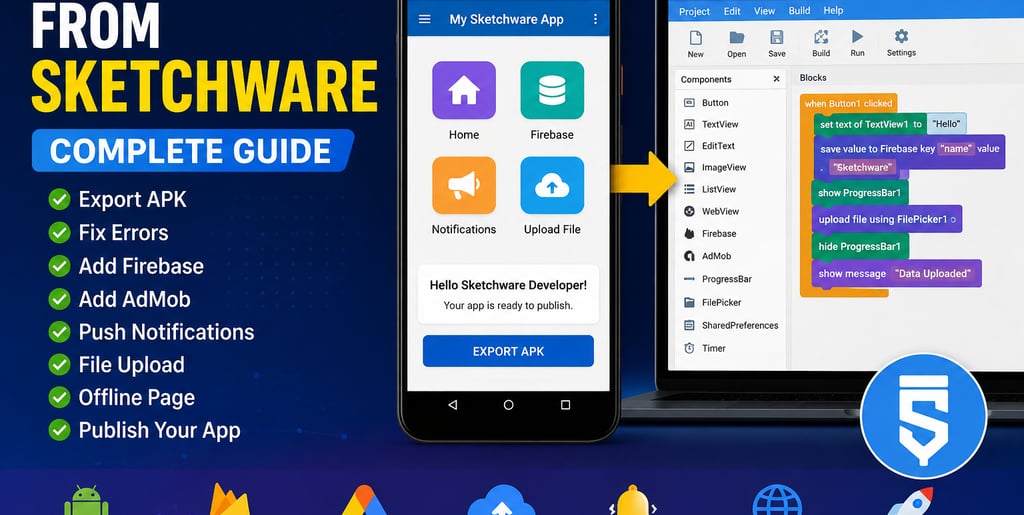
Publishing app from Sketchware is one of the most important steps after building your Android project. Many beginners create a calculator app, blog app, WebView app, attendance app, Firebase app, or music player in Sketchware, but they get confused when it is time to export the APK, install it on another phone, fix errors, or publish it online.
Sketchware makes Android app development easier because users can create apps with blocks, widgets, layouts, Firebase, WebView, buttons, media features, and custom logic. But before sharing the final app, you need to understand how exporting, testing, signing, publishing, and troubleshooting work.
This complete guide explains how to publish an app from Sketchware, how to export APK, how to move a Sketchware app to another phone or USB, how to fix “app not installed,” how to handle app crashing, how to add Firebase, how to use AdMob, how to prepare offline pages, how to use file upload, and how to make your Sketchware app safer and more professional.
What Does Publishing App from Sketchware Mean?
Publishing app from Sketchware means taking your finished Sketchware project and making it available for users to install or download.
This can mean:
Exporting the APK file
Installing the app on your own phone
Sending the app to another phone
Uploading the APK to your website
Sharing the app through Google Drive
Publishing the app on an app store
Preparing the app for Google Play
Creating a download page for users
For beginners, the first publishing step is usually exporting the APK file. After that, you can test it, fix errors, and decide where to share it.
Can You Publish Apps Made with Sketchware?
Yes, you can publish apps made with Sketchware, but the final result depends on your app quality, target Android version, permissions, app signing, policies, and build format.
You can create many types of apps using Sketchware, including:
Blog app
WebView app
Calculator app
Attendance app
Firebase database app
Music player app
Browser app
Dice game
Screen lock app
App lock app
Bluetooth app
Camera app
Push notification app
Offline page app
File upload app
Simple business app
However, not every Sketchware app is ready for public publishing. A test app may work on your phone, but a public app needs better design, stability, privacy policy, permission control, and error handling.
Step 1: Finish Your Sketchware Project First
Before exporting your app, make sure the project is complete. Many beginners export too early and later find broken buttons, missing images, Firebase errors, layout problems, or app crashing issues.
Check these points:
App name is correct
App icon is correct
Package name is correct
All buttons work
All activities open properly
Firebase path is correct
WebView loads correctly
Offline page works
AdMob test ads are checked
File upload works if needed
App does not crash on start
All images are optimized
Permissions are necessary and clear
A clean app is easier to publish and easier for users to trust.
Step 2: Set the App Name and Icon
Your app name and icon are important because users see them first. If you are creating a Sketchware app for blog, business, tools, education, or entertainment, your app name should be clear.
Good app name examples:
My Blog App
Student Attendance
Simple Calculator
Firebase Notes
Music Player Lite
Smart Browser
Daily Quotes
Avoid names that look spammy or misleading.
If you are unable to change app icon in Sketchware, check the image format, size, project settings, and rebuild the APK. Sometimes the old icon still appears because the phone has cached the previous app. In that case, uninstall the old app and install the new APK again.
Step 3: Check Package Name
The package name is the unique identity of your Android app.
Example:
com.yourname.myapp
Use a clean package name from the beginning because changing it later can cause problems with Firebase, updates, signing, and installation.
A good package name should be:
Unique
Lowercase
Related to your app or brand
Not copied from another app
Same as your Firebase Android package if using Firebase
If you use Firebase, the package name in Sketchware and Firebase must match.
Step 4: Export APK from Sketchware
After completing your app, use the Sketchware build or export option to create the APK file. APK means Android Package Kit. This is the file users install on Android phones.
Before exporting:
Save your project
Backup your project
Check all screens
Remove unused files
Test buttons and logic
Check permissions
Fix compile errors
Make sure internet permission is enabled if needed
Once the APK is created, install it on your phone and test it like a real user.
Step 5: Test the APK Before Publishing
Never publish the APK without testing. Testing helps you find problems before users complain.
Test these things:
App opens correctly
No crash on launch
Buttons work
New activities open
Back button works
Firebase data sends properly
Firebase data retrieves properly
WebView loads website
Offline page appears without internet
Push notification works
File upload works
Images load correctly
Music or sound works
AdMob ads do not break layout
Testing on one phone is not enough. Test on different Android versions and screen sizes if possible.
Sketchware App Not Installed: Common Reasons
Many users face the “Sketchware app not installed” problem after exporting APK.
Common reasons include:
Same package name already installed
Version conflict
App signing problem
APK file corrupted
Android version not supported
Storage permission issue
Old app not uninstalled
Target SDK or build issue
Device security settings blocking installation
Simple fixes:
Uninstall old version first
Rename version code if possible
Rebuild APK
Check package name
Try on another phone
Make sure unknown sources installation is allowed
Avoid broken or modified APK files
If the app still does not install, check whether your Sketchware version supports your target device.
Sketchware App Crashing: How to Fix
App crashing is another common problem. A Sketchware app may crash because of wrong logic, missing permissions, bad file path, Firebase setup error, or custom code injection issue.
Common crash causes:
Null value
Wrong intent extra
Missing permission
Firebase database rule problem
Incorrect component setup
Media player not released
File path not found
Image too large
Wrong API use
Custom code error
How to fix:
Test each activity separately
Remove recent changes and test again
Check custom code carefully
Add validation before using EditText data
Check Firebase URL and database rules
Check file permission
Use smaller images
Avoid too many heavy components on one screen
A stable app is more important than a feature-heavy app.
Sketchware Compile Error
A compile error means the app cannot build successfully. This can happen when the project has broken code, wrong blocks, missing libraries, or incorrect custom source.
Common compile error reasons:
Wrong Java code injection
Missing semicolon in custom code
Wrong import
Broken Firebase setup
Unsupported component
Wrong variable type
Duplicate view ID
Missing asset file
Old Sketchware version issue
Fix compile errors step by step. Do not change too many things at once. If you added custom code recently, remove it and test again.
Sketchware App to Another Phone
After exporting APK, you can move your Sketchware app to another phone.
Ways to share:
Bluetooth
USB cable
Google Drive
Telegram
WhatsApp document
Email
File manager
Website download link
If the APK does not install on another phone, check the Android version, security settings, package conflict, and APK file integrity.
Sketchware App to USB
You can copy the APK file to USB using a phone file manager or computer.
Basic process:
Export APK from Sketchware
Locate APK file
Connect phone to PC or USB OTG
Copy APK to USB
Move APK to another device
Install and test
This is useful if you want offline distribution.
Sketchware APK File
A Sketchware APK file is the final installable Android app package. You can share it with users, but you should do it carefully.
Your APK page should include:
App name
App version
File size
Features
Screenshots
Installation steps
Permissions used
Safety note
Update date
Developer name
This makes your download page look trustworthy.
Sketchware Download File Page
If your website offers Sketchware download file resources, create a clean download page. Avoid fake buttons and too many ads.
Good download page structure:
App title
Short description
Version number
File size
Safe download button
How to install
Common errors
Related tutorials
FAQ section
This can help your website rank for “Sketchware download file” and related APK keywords.
Sketchware APK After Unsubscribe
Some users ask what happens to a Sketchware APK after unsubscribe. In general, if you have already exported an APK, the installed APK may continue working depending on how it was built. But access to premium features, cloud features, build tools, or updates may depend on the Sketchware version or service terms.
Before unsubscribing:
Backup your projects
Export important APKs
Save source files
Save Firebase settings
Keep app signing details if available
Never depend on only one copy of your project.
Sketchware APK All Version and Old Version Download
Many users search for Sketchware APK all version or Sketchware app old version download. Old versions may be useful for compatibility, but they can also have security or build issues.
If you create an old version download page, include:
Version number
Release notes
Compatibility
Known issues
Safety warning
Update recommendation
Do not promote unsafe cracked APKs or modified premium APKs. It is better to guide users toward safe and trusted sources.
Warning About Sketchware APK Cracked, Crack, and Mod APK
Keywords like Sketchware APK cracked, Sketchware crack, Sketchware 2.1.3 mod APK, Sketchware 3.9.11 mod APK, and Sketchware premium APK often attract risky search traffic.
You can mention these terms in a safety article, but do not promote piracy or unsafe downloads.
Explain the risks:
Malware
Data theft
Project loss
Broken builds
Hidden ads
No updates
Privacy problems
App signing issues
A better approach is to create a safety guide titled “Is Sketchware Mod APK Safe?” and recommend legal, trusted download methods.
Platforms Supported by Sketchware App
Sketchware is mainly made for Android app development. It is not normally used like a full Windows, Mac, or Linux desktop software. Many users run it on PC using Android emulators.
Supported use cases:
Android phone
Android tablet
Android emulator on PC
Windows through emulator
Mac through emulator
Linux through emulator or Android environment
If someone wants professional desktop Android development, Android Studio is usually the stronger option.
Sketchware App for PC
Sketchware app for PC usually means using an Android emulator. You install the emulator, install Sketchware APK, and run it like an Android app.
This is useful for:
Bigger screen
Easier typing
Testing projects
Managing files
Creating tutorials
Recording videos
But emulator performance depends on your computer RAM and CPU.
Sketchware Android Studio Comparison
Sketchware is easier for beginners. Android Studio is more professional and powerful.
Sketchware is good for:
Learning basics
Visual block programming
Simple apps
Firebase beginner apps
WebView apps
Small tools
Fast prototypes
Android Studio is better for:
Large apps
Play Store-ready projects
Modern Android APIs
Professional coding
App Bundle generation
Advanced debugging
Long-term app maintenance
If your Sketchware app becomes serious, you may later rebuild or improve it in Android Studio.
Publishing Sketchware App on Google Play
Publishing a Sketchware app on Google Play requires more preparation than simply exporting an APK.
You may need:
Developer account
App Bundle format
Proper signing
Target API compliance
Privacy policy
App screenshots
App description
Category selection
Content rating
Data safety form
Permissions explanation
Testing release
Many Sketchware APK exports may not be directly ready for Play Store requirements. You may need extra conversion, rebuilding, or Android Studio support depending on your build output.
Publishing Sketchware App Outside Google Play
You can also publish your app outside Google Play.
Options:
Your website
GitHub release
Google Drive
Telegram channel
APK hosting page
Direct client delivery
Private company distribution
If you publish outside Google Play, clearly explain installation steps because Android may block unknown source installation by default.
Sketchware Add Firebase
Firebase is one of the most useful features for Sketchware apps. It allows your app to send, retrieve, and store data online.
Firebase can be used for:
Login app
Chat app
Attendance app
User profiles
Feedback form
Order system
Student records
App settings
Push notification support
Before publishing, test Firebase carefully.
Sketchware API Key in Firebase
Firebase uses project configuration connected to your Android package name. If the API key, package name, or Google services setup is wrong, your app may not work properly.
Check:
Correct Firebase project
Correct Android package name
Correct database URL
Correct rules
Correct authentication setup
Correct storage setup if uploading files
Do not expose sensitive private keys or admin credentials in your app.
Retrieve Data from Firebase in Sketchware
Many apps need to retrieve data from Firebase after sending it.
Examples:
Show user profile
Show chat messages
Show attendance records
Show product list
Show quiz scores
Show app notices
Show database result in TextView or ListView
When retrieving data, make sure the database path is correct and the UI updates properly.
Push Notification Sketchware
Push notifications are useful for app updates, messages, reminders, and user engagement.
Use push notifications for:
New message alert
Order update
Attendance reminder
Blog update
App announcement
Task reminder
Do not spam users with unnecessary notifications. Give them value.
Sketchware AdMob
AdMob helps app owners earn money from ads. In Sketchware, AdMob can be used for banner ads, interstitial ads, and rewarded video ads depending on your setup.
Before publishing with AdMob:
Use test ads during development
Follow AdMob policy
Do not click your own ads
Do not overload the app with ads
Place ads where they do not break UX
Add privacy policy if collecting data
Ads should support your app, not ruin the user experience.
Reward Video Sketchware
Reward video ads give users something in return for watching an ad.
Use reward video for:
Unlock coins
Extra quiz chance
Remove limit
Bonus content
Game reward
Never force reward ads unfairly. Make the reward clear.
Sketchware Offline Page
If your Sketchware app uses WebView, you should set an offline page. Without an offline page, users may see a blank screen when internet is not available.
A good offline page includes:
“No internet connection” message
Retry button
Simple icon
Clear instruction
Optional contact link
This improves user experience and makes your app feel professional.
Setup Offline Page in Sketchware
To setup offline page in Sketchware, create a layout or activity that appears when there is no internet connection.
Basic flow:
Check internet connection
If online, load WebView
If offline, show offline page
Add retry button
Retry loads the website again
This is very important for blog apps, ecommerce apps, and business website apps.
Pull Refresh Sketchware
Pull refresh is useful for WebView, news apps, list apps, and Firebase apps.
Use pull refresh to:
Reload WebView
Refresh Firebase data
Update article list
Reload user profile
Refresh product list
If pull refresh conflicts with file upload or progress bar, test each function separately.
Progress Bar and File Upload Order in Sketchware
A WebView app often needs both progress bar and file upload support. Sometimes the order of logic matters.
Common problem:
File upload does not open
Progress bar keeps loading
WebView reloads unexpectedly
Upload button not responding
Best practice:
Set WebView settings clearly
Add file upload logic carefully
Add progress bar after WebView load events
Test upload on real device
Check Android version compatibility
Progress Bar and FP Conflicts in Sketchware
FP may refer to file picker in many Sketchware discussions. If progress bar and file picker conflict, the upload action may not work properly.
Fix ideas:
Check file picker code
Check WebView client setup
Check progress bar visibility logic
Avoid blocking upload callback
Test without progress bar first
Add progress bar again after upload works
Sketchware with File Upload
File upload is important for WebView apps, Firebase apps, and form apps.
Use file upload for:
Profile photo
Document upload
PDF upload
Image upload
Assignment upload
Product upload
Voice recording upload
File upload often requires storage permission, file picker logic, and proper Android version handling.
Read from External Storage Sketchware
Reading from external storage is useful for file manager, music player, PDF reader, gallery app, and upload apps.
Common uses:
Select image
Read text file
Open PDF
Play music
Upload document
Display gallery
New Android versions have stricter file access rules, so test your app carefully.
Sketchware Camera
A camera app can take photos or select images. It can be used for profile upload, attendance proof, product upload, or gallery projects.
Before publishing:
Ask for camera permission
Explain why camera is needed
Compress large images
Handle permission denial
Test on multiple phones
Sketchware Bluetooth
Bluetooth apps are useful for Arduino, IoT, robot control, and device communication.
Common Bluetooth app ideas:
Arduino LED control
Bluetooth car control
Sensor data app
Smart home switch
Attendance device connection
Bluetooth apps need permissions and hardware testing.
Sketchware Attendance App
An attendance app is a useful project idea for students and small teams.
Features:
Student or employee name
Date
Time
Present/absent button
Firebase database
Report screen
Export option
This app can include Firebase, Spinner, Date, ListView, and offline storage.
Sketchware Calculator Tutorial
A calculator app is one of the easiest beginner projects.
Features:
Number input
Addition
Subtraction
Multiplication
Division
Result display
Clear button
Related keywords include Sketchware calculator program, Sketchware calculator tutorial, and Sketchware addition.
Sketchware Adding Given Value in EditText
If users enter values in EditText, you can add them and show the result.
Example:
Value 1: 20
Value 2: 30
Result: 50
This is useful for calculator apps, bill apps, attendance apps, score apps, and finance tools.
Sketchware Copy Result to EditText
You can copy a result from one TextView or variable into another EditText.
Example use cases:
Calculator result
Form preview
Auto-filled field
Copied code
Generated password
Referral code
Use clear variable names to avoid confusion.
Sketchware Countdown Timer
Countdown timer apps are useful for quiz apps, exam apps, workout apps, cooking apps, and reminders.
Types:
Countdown timer analog
Countdown timer chrono
Basic digital countdown
Timer with sound
Timer with notification
Before publishing, test timer behavior when the app goes to background.
Sketchware Automatic Song Player
An automatic song player can start playing music based on user action, timer, or app event.
Use cases:
Music player
Alarm app
Meditation app
Audio lesson app
Game background music
Avoid autoplaying loud audio when the app opens because it can annoy users.
Prevent Media Dialogue in New Activity in Sketchware
Sometimes media controls or audio dialogs appear when moving to a new activity. This can happen when media player logic is not properly stopped, paused, or released.
Fix ideas:
Stop media before opening new activity
Pause media on activity change
Release media player when activity closes
Avoid duplicate media player components
Test back button behavior
This makes your app smoother.
Sketchware Browser Loading
For browser or WebView apps, users expect smooth loading.
Add:
Progress bar
Refresh button
Back button
Offline screen
Loading message
Error page handling
A browser app should not just show a blank screen.
Sketchware Browser App
A simple browser app can include:
URL input
Go button
WebView
Refresh
Back
Forward
Home
Progress bar
Offline page
This is a strong beginner project and can be linked to your WebView tutorial.
Sketchware App for Blog
A blog app is usually created with WebView. It loads your website inside an Android app.
Important features:
WebView
Internet permission
JavaScript enabled
Offline page
Pull refresh
Push notification
Navigation drawer
Contact page
Privacy policy
If your blog app has login, upload, or comments, test all forms carefully.
Sketchware App Website
If your website is about Sketchware, organize your content into clear categories.
Recommended categories:
Sketchware tutorials
Sketchware APK guide
Firebase tutorials
WebView tutorials
App publishing
App templates
Source code
Error fixes
Beginner projects
Download files
This helps Google understand your site topic.
Sketchware App Template
App templates help beginners create apps faster.
Popular templates:
Blog app template
WebView template
Firebase login template
Calculator template
Attendance template
Music player template
Quiz template
Browser template
Template pages should include screenshots, features, installation steps, and compatibility notes.
Sketchware App Source
Sketchware app source means the editable project file or code structure that users can learn from.
If you offer source files:
Explain what is included
Add screenshots
Add setup steps
Mention Sketchware version
Add safety note
Provide update date
Avoid fake download buttons
This improves trust.
Sketchware Code Injection
Code injection means adding custom code directly into the project. This can unlock advanced features, but it can also cause errors.
Use code injection for:
Advanced WebView
File upload
Custom dialogs
Notifications
AdMob
PDF reader
Media control
Be careful because one small code mistake can create compile errors.
Sketchware Add Source Directly
“Add source directly” usually means adding custom Java or source code into a Sketchware project.
Use it only when necessary. Beginners should first learn blocks, views, events, variables, and components.
When adding source directly:
Backup project first
Add small code pieces
Test after each change
Avoid copying unknown code
Check imports
Check permissions
Sketchware Code Writer
A code writer feature or custom code section can help advanced users add Java logic. But it should not replace learning app structure.
Use code writer for:
Extra Android features
Advanced UI
Custom functions
API connection
File handling
Firebase custom logic
Always test after adding code.
Sketchware Codes PDF
A Sketchware codes PDF can be useful for learners. It can include reusable code snippets, blocks explanation, and common solutions.
Suggested sections:
WebView code
Firebase code
File upload code
AdMob code
Dialog code
Intent code
Media player code
Permission code
This can rank for Sketchware codes PDF and Sketchware docs keywords.
Sketchware Docs
Your website should have documentation-style content. Docs pages are good for SEO because they answer specific questions.
Example docs:
How to add button in Sketchware
How to create new activity
How to add Firebase
How to export APK
How to fix app not installed
How to add background image
How to create offline page
How to retrieve data from Firebase
Sketchware Community
A community page can help users ask questions and share projects.
Community sections:
Beginner help
Firebase help
APK errors
WebView problems
App templates
Source code sharing
Project showcase
Community content can also bring long-tail search traffic.
Sketchware Best Apps
You can create a blog post listing the best apps made with Sketchware or best app ideas for Sketchware.
Examples:
Blog app
Attendance app
Calculator
Browser
Music player
Firebase chat
Dice game
Camera app
Bluetooth controller
App lock
This type of content supports internal linking.
Sketchware Block Language
Sketchware uses a visual block language to help beginners create logic without writing full code.
Block language helps users understand:
If/else
Variables
Loops
Button click events
Text values
Calculations
Intent actions
Firebase actions
This is why Sketchware is beginner-friendly.
Sketchware Block Helper
Block helper content can explain what each block does.
Useful topics:
Button click block
TextView set text block
EditText get text block
Intent block
Firebase push block
Timer block
List block
Variable block
Short block explanations can rank for many beginner keywords.
Final Publishing Checklist
Before publishing app from Sketchware, use this checklist:
App name is correct
Icon is correct
Package name is clean
APK exports successfully
App installs on multiple phones
App does not crash
Buttons work
Firebase works
WebView works
Offline page works
File upload works if used
Push notifications tested
AdMob test ads checked
Privacy policy added
Permissions are necessary
App description written
Screenshots prepared
APK backup saved
Project backup saved
This checklist can prevent many common publishing problems.
FAQ
Can I publish an app made with Sketchware?
Yes, you can publish a Sketchware app, but you must test it carefully and make sure it meets the requirements of your chosen platform.
Can I upload a Sketchware APK to Google Play?
Google Play has specific publishing requirements, and many new apps need App Bundle support. A basic APK export may not be enough for Google Play without additional preparation.
Why does my Sketchware app say app not installed?
This can happen because of package conflict, signing issue, corrupted APK, Android version mismatch, or old app version already installed.
How do I fix Sketchware app crashing?
Check recent changes, permissions, Firebase setup, file paths, custom code, and heavy images. Test each activity separately.
Can I move my Sketchware app to another phone?
Yes. Export the APK and send it through USB, Bluetooth, Drive, email, or file sharing apps.
Can I add AdMob in Sketchware?
Yes, depending on your Sketchware version and setup. Always use test ads during development and follow AdMob policies.
Can I add Firebase to a Sketchware app?
Yes. Firebase can help you create login apps, database apps, chat apps, attendance apps, and profile apps.
Can I create a blog app with Sketchware?
Yes. Most blog apps are created with WebView. Add offline page, progress bar, refresh, and push notification for a better experience.
Is Sketchware better than Android Studio?
Sketchware is easier for beginners. Android Studio is better for professional and advanced Android development.
Should I use cracked Sketchware APK?
No. Cracked or modified APK files can be unsafe and may cause privacy, malware, and project loss problems.
Conclusion
Publishing app from Sketchware is not only about exporting an APK. You need to test the app, fix installation errors, check app crashing problems, prepare Firebase, handle WebView offline pages, manage file upload, add AdMob carefully, and make sure the app is useful for real users.
Start with a simple APK export and test it on your own phone. Then test it on another phone. Fix errors before sharing it publicly. If you want to publish on Google Play, check the latest app format, target API, signing, privacy, and policy requirements.
Sketchware is a great tool for beginners who want to create Android apps visually. With proper testing and publishing steps, your Sketchware project can become a real app that users can install and use.