whatsapp: +351967396201
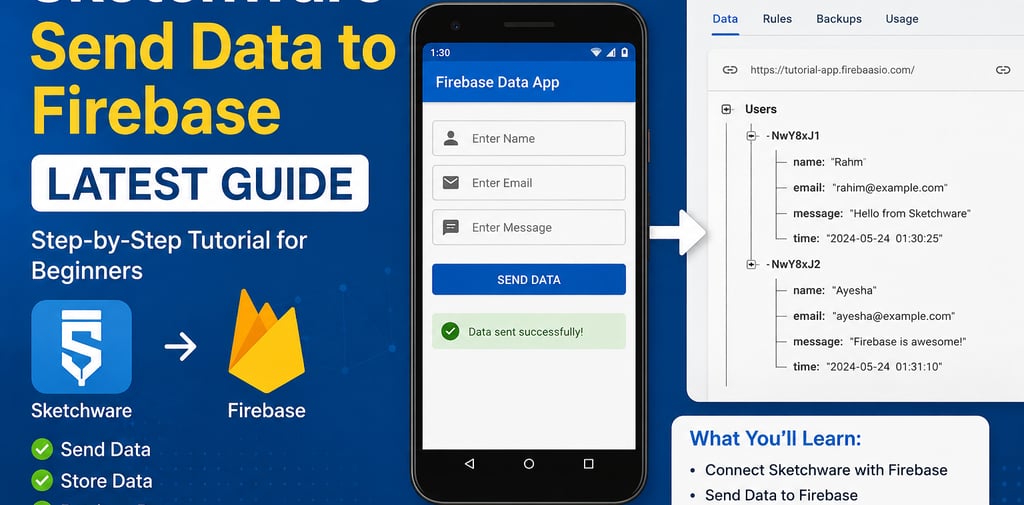
Sketchware Send Data Firebase Latest Guide: Save, Read & Upload App Data
Learn how to send data to Firebase in Sketchware, create Firebase login, upload images, build WebView apps, use Spinner, Timer, SQLite, files, and more in this beginner-friendly Sketchware tutorial.
Sketchware
6/23/202617 min read
If you are learning Sketchware and want to build real Android apps, one of the most important skills is learning how to send data to Firebase. Many beginner apps start with simple buttons, text views, and screens, but when you add Firebase, your app becomes more powerful. You can save user information, messages, images, quiz scores, feedback, orders, notes, and other app data online.
This guide explains the latest beginner-friendly way to understand Sketchware send data Firebase projects. It also covers related topics like Firebase login, uploading images to Firebase, WebView projects, Spinner, SQLite, Timer, speech to text, media player, file writing, PDF tutorials, and common Sketchware errors.
Whether you want to create a messaging app, simple browser, media player, quiz app, timesheet app, voice recorder, or WebView project, Firebase can help your Sketchware app store and manage data properly.
What Does “Send Data to Firebase” Mean in Sketchware?
Sending data to Firebase means your Sketchware app takes information from the user and saves it in an online Firebase database.
For example, a user may enter:
Name
Email
Phone number
Message
Feedback
Score
Address
Image URL
Product order
Timesheet entry
When the user taps a button, the app sends that information to Firebase. Later, the app can read the same data and show it on another screen.
This is useful because the data does not stay only on one phone. It can be stored online and accessed again when needed.
Why Firebase Is Important for Sketchware Apps
Firebase is popular among Sketchware users because it makes online app features easier. Without Firebase, your app may only work offline or store limited data on the user’s device. With Firebase, your app can support real-time data, login systems, cloud storage, user profiles, chat messages, and app activity.
Firebase is helpful for:
Firebase login apps
Messaging apps
Quiz apps
Timesheet apps
Feedback forms
Customer apps
Shopping apps
Student record apps
Voice recorder apps with uploaded files
Image upload apps
Realtime dashboards
Admin panel style apps
For beginners, Firebase is often easier than setting up MySQL, PHP, hosting, APIs, and backend servers.
Sketchware and Firebase: Basic Project Idea
A basic Sketchware Firebase app usually has:
One input field for user name
One input field for message
One button to send data
One Firebase database component
One screen to display saved data
The simple flow looks like this:
User opens app
User enters data
User taps Send
Sketchware sends the data to Firebase
Firebase stores the data online
App can read and show the data later
This is the foundation of many advanced Sketchware apps.
Before You Start: Things You Need
Before sending data to Firebase in Sketchware, prepare the basic setup.
You need:
Sketchware or Sketchware Pro installed
A Firebase account
A Firebase project
An Android app package name
Internet permission enabled
Basic knowledge of EditText, Button, and TextView
Firebase database component or custom Firebase setup
Your Sketchware version may change the exact options, but the concept is usually the same.
Step 1: Create a Firebase Project
First, go to Firebase and create a new project. Give your project a simple name that matches your app.
For example:
SketchwareLoginApp
MyChatApp
SimpleFirebaseApp
StudentDataApp
TimesheetApp
After creating the project, add an Android app. Firebase will ask for your Android package name. This package name should match your Sketchware project package name.
Example:
com.example.myfirebaseapp
Keep your package name simple, clean, and unique.
Step 2: Choose Realtime Database or Firestore
Firebase gives different database options. For many Sketchware beginner tutorials, Firebase Realtime Database is easier to understand because the data structure is simple.
Realtime Database is good for:
Chat messages
User list
Simple app data
Live updates
Basic forms
Beginner projects
Firestore is also powerful, but beginners may find it more complex because it uses collections and documents.
For a basic Sketchware tutorial, start with Realtime Database first. After you understand the concept, you can explore Firestore.
Step 3: Create Your Sketchware Project
Open Sketchware and create a new project.
Use a clear app name like:
Firebase Data App
Send Data App
Sketchware Firebase Tutorial
Firebase Login App
Then create your main screen.
Add these views:
EditText for name
EditText for email
EditText for message
Button for send
TextView for status message
You can design the screen simply. Do not worry about advanced UI at the beginning. First, make sure the data sends correctly.
Step 4: Add Firebase Component in Sketchware
Depending on your Sketchware version, you may have a Firebase component option. Add the Firebase database component to your project.
Then connect your app with the Firebase project.
You may need:
Firebase database URL
Google services file
Package name
Internet permission
Database rules
In some Sketchware Pro versions, you may need additional setup or custom code. Always match your Firebase setup with your Sketchware version.
Step 5: Get Data from EditText
Before sending data to Firebase, your app needs to get the values entered by the user.
Example fields:
edittext_name
edittext_email
edittext_message
When the user taps the button, Sketchware should collect the text from those fields.
Example logic:
Get name from EditText
Get email from EditText
Get message from EditText
Check if fields are empty
Send data to Firebase
Show success message
This simple validation makes your app cleaner.
Step 6: Send Data to Firebase
Now you can send data to Firebase. In a basic form app, you can create a map or data structure and send it to your Firebase database path.
Example database path:
users
messages
feedback
orders
timesheets
For example, if you are saving user feedback, your Firebase path can be:
feedback/user_id
If you are saving chat messages, your path can be:
messages/message_id
A clean database path helps you manage data later.
Example: Simple Firebase Data Structure
Here is a beginner-friendly Firebase data structure:
users
user1
name: Rahim
email: rahim@example.com
message: Hello
messages
message1
sender: Rahim
text: Hi everyone
time: 10:30 AM
orders
order1
product: App Template
price: 10
status: pending
This structure is simple and easy to understand.
Step 7: Show Success or Error Message
After sending data, show a clear message to the user.
Good success message:
Data sent successfully.
Good error message:
Please fill all fields before sending.
Another useful message:
Internet connection is required to send data.
User feedback is important. If the app does nothing after tapping the button, beginners may think the app is broken.
Step 8: Read Data from Firebase
Sending data is only one part. You also need to read data from Firebase.
For example, if users send messages, you need to show those messages in the app.
You can display Firebase data using:
TextView
ListView
Recycler-style list
Card layout
GridView
For beginner projects, start with TextView or ListView. Later, use better UI designs.
Sketchware Firebase Login
Firebase login is another important topic. A Firebase login app allows users to register and sign in with email and password.
A basic Firebase login app includes:
Register screen
Login screen
Email EditText
Password EditText
Register button
Login button
Forgot password option
Home screen after login
Firebase login is useful for:
Chat apps
User profile apps
Shopping apps
Admin apps
Student apps
Timesheet apps
Private diary apps
After login, you can save extra user details in Firebase Database.
Sketchware Send Data Firebase Latest Example: User Profile App
A user profile app is a good beginner project.
The app can save:
Name
Email
Phone number
Location
Profile bio
Profile image URL
The flow:
User registers
User enters profile details
App sends details to Firebase
User can view profile later
User can update profile data
This project teaches Firebase login, database writing, database reading, and profile screen design.
Upload Image to Firebase DB from Sketchware Project
Many users search for upload image to Firebase DB from Sketchware project. Technically, Firebase Database is usually used to store text data, keys, URLs, and structured data. Images are better stored in Firebase Storage, then the image download URL can be saved in Firebase Database.
The basic idea:
User selects image
App uploads image to Firebase Storage
Firebase returns image URL
App saves image URL to Firebase Database
App displays image using the URL
This is common for profile images, product images, gallery apps, and chat apps.
Sketchware with File Upload
File upload in Sketchware can be used for:
Profile photos
PDF upload
Voice recording upload
Document upload
Assignment upload
Product image upload
App project sharing
For file upload, your app may need storage permission and file picker support. New Android versions may require extra permission handling, so always test carefully.
Sketchware Write to a File
Not all data needs Firebase. Sometimes you may want to save data locally on the phone. This is where file writing helps.
You can write to a text file for:
Diary app
Notes app
Log app
Offline record app
Timesheet app
Simple database backup
Examples:
Write user note to text file
Save app logs
Save form data locally
Export user records
Firebase is for online storage. File writing is for local storage.
Sketchware Write to Text File
A text file is useful when you want simple offline data. For example, a timesheet app can save work hours locally before sending them to Firebase.
Basic flow:
User enters task
User enters time
App writes data to text file
Later app reads the file
User can export or send data
This works well for offline-first apps.
Sketchware SQLite
SQLite is another way to store data locally. It is more structured than a text file.
SQLite is useful for:
Offline notes
Local customer list
Expense tracker
Quiz questions
Product list
Task manager
Timesheet records
Firebase is online. SQLite is local. Some advanced apps use both.
Example:
Save data locally in SQLite
Sync important data to Firebase when internet is available
This creates a better user experience.
Sketchware Spinner
Spinner is a dropdown menu. It is useful when users need to choose one option.
Use Spinner for:
Category selection
Country selection
Product type
Gender selection
Status selection
Payment method
Timesheet project selection
For example, in a Firebase form app, you can use Spinner to let users select a category before sending data.
Example fields:
Name
Email
Category Spinner
Message
Send button
The selected Spinner value can be sent to Firebase with the other form data.
Spinner Sketchware Example for Firebase
Suppose you are creating a feedback app. Add a Spinner with these options:
Bug report
Feature request
General question
Payment issue
When the user selects an option and submits the form, send the selected category to Firebase.
This helps organize feedback in the database.
Sketchware Timer
Timer is useful when you want to run actions after a delay or repeat something.
Use Timer for:
Splash screen
Countdown app
Quiz timer
Clock app
Auto refresh
Animation delay
Time tracking
Timesheet app
In Firebase apps, Timer can be used to refresh data, show loading screens, or control quiz time.
Timer Sketchware Example
A quiz app can use Timer to limit each question to 30 seconds.
Flow:
Question appears
Timer starts
User selects answer
If time ends, move to next question
Save score to Firebase
This makes the app more interactive.
Sketchware Time App
A time app can show current time, countdowns, timers, alarms, or work hours.
Possible time app ideas:
Clock app
Countdown app
Study timer
Prayer time app
Work timesheet app
Attendance time app
Pomodoro timer
If connected with Firebase, users can save their time records online.
Sketchware Timesheets
A timesheet app is a great practical Sketchware project.
Features:
Employee name
Date
Start time
End time
Total hours
Project name
Submit button
Firebase database storage
This app can use EditText, Spinner, Timer, Date, Firebase, and ListView.
Sketchware Sum Given Value in EditText
Many beginner apps need calculation. For example, a timesheet app may calculate total hours, or an expense app may calculate total cost.
You can get numbers from EditText, convert them into numeric values, add them, and show the result.
Example:
EditText 1 = 50
EditText 2 = 30
Result = 80
This is useful for:
Calculator apps
Order apps
Expense apps
Invoice apps
Score apps
Timesheet apps
You can also send the calculated result to Firebase.
Sketchware View EditText Data in Another EditText
Sometimes you need to pass data from one field or screen to another.
Example:
User types name in Screen 1
App opens Screen 2
Screen 2 shows the same name
This can be done using Intent extras or stored variables.
This is useful for:
Profile apps
Order confirmation
Result pages
Quiz score pages
Form preview screens
Sketchware View Result in Another GetText
This search usually means users want to show data from one screen or field in another place.
The basic idea:
Get text from EditText
Store it in a variable or Intent extra
Open another activity
Set TextView or EditText with that value
This is an important beginner concept.
Variable in Sketchware
Variables store temporary data inside your app.
Examples:
username
score
total
selectedCategory
messageText
timerCount
Variables are useful for app logic.
Example:
If score is greater than 80, show “Excellent.”
Variables can also help prepare data before sending it to Firebase.
Substring in Sketchware App
Substring means taking part of a text.
Example:
Original text: sketchware
Substring: sketch
Use substring for:
Shortening text
Getting username from email
Formatting phone numbers
Extracting codes
Showing preview text
This is useful in messaging apps, login apps, and form apps.
Sketchware Simple Browser
A simple browser app is one of the easiest Sketchware projects.
Features:
EditText for URL
Button to open website
WebView
Back button
Forward button
Refresh button
Home button
You can also add no internet detection for better user experience.
Sketchware WebView Project
A WebView project turns a website into an Android app.
Useful for:
Blogs
Business websites
Ecommerce stores
Learning platforms
Tools
News websites
A good WebView app should include:
JavaScript enabled
Internet permission
Progress bar
Back button support
No internet screen
Refresh button
File upload support if needed
Sketchware WebView Cool Design
A WebView app should not look like a blank browser. You can improve the design with:
Welcome screen
App logo
Navigation drawer
Bottom menu
Progress bar
Custom toolbar
Refresh button
No internet page
Modern color theme
A cool design makes users trust your app more.
Sketchware WebView Navigation Drawer
A navigation drawer helps users move between pages.
Example drawer items:
Home
Tutorials
Downloads
Contact
Privacy Policy
About
Exit
For a WebView app, each drawer item can open a different website URL inside the WebView.
Sketchware Web Logic
Web logic means handling website behavior inside the app.
Examples:
Open external links
Handle file upload
Stop loading when no internet
Enable JavaScript
Open phone links
Open email links
Handle back button
Show loading progress
Good WebView logic makes your app feel more professional.
Sketchware Prevent WebView Problems
Common WebView problems include:
Website not loading
JavaScript disabled
File upload not working
Back button closes app
No internet blank screen
Video not playing
External links not opening
Fix these problems one by one.
For example, if the website does not load, check:
Internet permission
Correct URL
HTTPS support
JavaScript setting
Device internet connection
Sketchware Tutorial WebView
A good Sketchware WebView tutorial should teach:
How to add WebView
How to load a website
How to add refresh button
How to handle back button
How to enable JavaScript
How to show no internet message
How to enable file upload
How to export APK
This is a strong keyword topic for your website because many beginners want to make WebView apps.
Sketchware Simple Media Player
A simple media player app is another popular project.
Basic features:
Play button
Pause button
Stop button
Song title
Progress bar
Volume control
Song list
This project teaches media components, buttons, file access, and UI design.
Sketchware Sound
Sound can be used in many apps.
Examples:
Button click sound
Game sound effects
Notification sound
Quiz correct answer sound
Timer finish sound
Alarm sound
Use sound carefully. Too many sounds can annoy users.
Sketchware SoundPool
SoundPool is useful for playing short sound effects. It is often used in games and interactive apps.
Good uses:
Button tap effect
Game jump sound
Win sound
Error sound
Correct answer sound
Notification tone
For long music files, a media player is usually better.
Sketchware Two Sounds Same Time
Playing two sounds at the same time can be useful in games or music apps, but it may require proper sound handling.
Example:
Background music plays
Button sound plays on top
This requires careful control so sounds do not overlap badly or crash the app.
Sketchware Speech to Text
Speech to text lets users speak and convert voice into written text.
Use speech to text for:
Voice notes
Search box
Chat input
Accessibility
Voice command app
Language learning app
This can make your Sketchware app more modern and easier to use.
Voice Recorder in Sketchware
A voice recorder app can record audio and save it.
Basic features:
Start recording
Stop recording
Save audio file
Play recording
Delete recording
Upload recording if needed
If you want online backup, you can upload the audio file and save its link in Firebase.
Voice Recorder App Sketchware Project Idea
A simple voice recorder app can include:
Record button
Stop button
Play button
File name field
Recording list
Firebase upload option
This project combines audio, files, permissions, and Firebase.
Use GIFs in Sketchware
GIFs can be used for splash screens, loading animations, banners, or fun UI effects.
Common uses:
Splash screen GIF
Loading screen
Success animation
Tutorial animation
App intro screen
However, GIFs can increase app size. Use compressed files and test performance.
Using a GIF as a Splash Screen in Sketchware
A GIF splash screen can make your app look attractive, but keep it short.
Best practice:
Show logo
Show GIF for 2–3 seconds
Move to main screen
Avoid long loading delay
Keep file size small
A splash screen should improve branding, not slow the app.
Sketchware ViewPager
ViewPager is used for swipeable screens.
Use ViewPager for:
App onboarding
Image slider
Tutorial screens
Product gallery
News carousel
Feature introduction
A ViewPager tutorial is useful because many apps use swipe screens.
ViewPager in Sketchware Example
A simple onboarding screen can include:
Page 1: Welcome
Page 2: Features
Page 3: Start button
This makes your app feel more professional.
Sketchware Welcome Screen
A welcome screen is the first screen users see. It should explain what the app does.
A good welcome screen includes:
App logo
Short title
One clear sentence
Start button
Login or register option
Do not make the welcome screen too crowded.
Sketchware Tutorial APK
A tutorial APK can help users learn by installing a demo app.
If your website offers tutorial APKs, include:
APK name
Version
Features
Screenshots
Installation guide
Safety note
Related source file if available
This helps users trust your downloads.
Sketchware Tutorial PDF Download
A PDF tutorial is useful for offline learning.
A good Sketchware tutorial PDF should include:
Step-by-step screenshots
Beginner explanation
Firebase setup
WebView setup
Quiz app tutorial
Media player tutorial
Common errors
Project examples
This can rank for tutorial PDF keywords.
Sketchware Tutorial Hindi
Many users search for Sketchware tutorial Hindi or Sketchware tutorial in Hindi. If your audience includes Hindi speakers, create separate Hindi guides.
Possible Hindi topics:
Sketchware kaise use kare
Firebase data kaise bheje
WebView app kaise banaye
Sketchware login app tutorial
Sketchware quiz app tutorial
Language-specific pages can bring long-tail traffic.
Sketchware Telugu for Beginners
Sketchware Telugu tutorials are also useful for regional search traffic.
Create beginner content like:
Sketchware Telugu basic tutorial
Firebase login Telugu guide
WebView app Telugu tutorial
Quiz app Telugu tutorial
Sketchware blocks explained in Telugu
Regional tutorials can help your site stand out.
Sketchware Tutorial for Arduino
Some users search for Sketchware tutorial for Arduino. Sketchware is mainly for Android apps, but you can create Android apps that communicate with Arduino through Bluetooth, Wi-Fi, or external modules.
Example Arduino app ideas:
LED control app
Bluetooth robot control
Home automation app
Sensor data display
Arduino blink control app
This topic can attract electronics learners.
Sketchware Tutorial for Arduino Blink Code
A simple Arduino blink app idea:
Android app has ON and OFF buttons
Sketchware sends command through Bluetooth
Arduino receives command
LED turns on or off
This is not a pure Sketchware-only project. It also needs Arduino code and hardware setup.
Sketchware Dialer App Tutorial
A dialer app can help users make phone calls from your app.
Basic features:
EditText for phone number
Call button
Contact list
Permission handling
Use this carefully. Always ask for permission and avoid hidden call actions.
Sketchware Share Code
Share code means allowing users to share text, links, or app content.
Use share code for:
Share app link
Share quiz score
Share referral code
Share article link
Share message
Share project details
A share button can improve app engagement.
Sketchware Share Code Example
Example flow:
User taps Share
App opens Android share menu
User selects WhatsApp, email, or another app
Text is shared
This is simple but useful for many apps.
Sketchware Slack and Communities
Some users search for Sketchware Slack or Slack communities Sketchware. Community spaces can help beginners ask questions, share projects, and solve errors.
You can also create content around:
Sketchware forum
Sketchware WhatsApp group
Sketchware community
Sketchware tutorials
Sketchware help
Community pages can bring repeat visitors.
Sketchware WhatsApp Group
A WhatsApp group can help users get quick support, but it should have rules.
Good group rules:
No spam
No unsafe APKs
No piracy
Ask clear questions
Share screenshots
Respect beginners
Use proper project topics
This keeps the community useful.
Sketchware Wiki
A Sketchware wiki can be a strong SEO asset. It can explain every feature in short articles.
Example wiki pages:
What is Firebase in Sketchware?
What is Spinner in Sketchware?
What is Intent in Sketchware?
What is Timer in Sketchware?
What is WebView in Sketchware?
What is SoundPool in Sketchware?
This creates topical authority.
Sketchware vs Thunkable
Many users compare Sketchware vs Thunkable.
Sketchware is mainly Android-focused and block-based. Thunkable is a no-code app builder that can support cross-platform app building depending on the plan and features.
Sketchware is good for:
Android beginners
Offline practice
APK projects
Visual logic learning
Simple Android apps
Thunkable is good for:
No-code app building
Cross-platform style projects
Drag-and-drop app design
Business prototypes
If your goal is Android learning, Sketchware is a good start. If your goal is cross-platform app publishing, compare tools carefully.
Thunkable vs Sketchware: Which Is Better?
Choose Sketchware if:
You want Android app practice
You want to learn logic blocks
You want simple APK projects
You want Firebase beginner projects
Choose Thunkable if:
You want more no-code platform features
You want easier cross-platform options
You want web-based design tools
You want polished app builder workflows
Both tools can be useful depending on your goal.
Software Like Sketchware for PC
If you want software like Sketchware for PC, consider:
MIT App Inventor
Kodular
Thunkable
Android Studio
FlutterFlow
App Inventor-style builders
Sketchware is mostly Android-based, so PC users often use an emulator.
Sketchware Software for PC
Sketchware software for PC usually means running Sketchware through an Android emulator. There may not be an official Windows desktop app for Sketchware in the same way as normal PC software.
If you use Sketchware on PC:
Install emulator
Install Sketchware APK
Create your project
Test inside emulator
Export APK
For advanced Android development, Android Studio is still better.
Trial of Sketchware App on Windows Machine
To test Sketchware on a Windows machine, use an Android emulator.
Steps:
Install emulator
Open emulator
Install Sketchware
Create sample app
Export APK
Test APK inside emulator or phone
This is useful for people who prefer a bigger screen.
What Kind of Apps Can Sketchware Make?
Sketchware can make many types of Android apps, especially beginner and intermediate apps.
Examples:
WebView apps
Firebase apps
Login apps
Chat apps
Quiz apps
Media player apps
Voice recorder apps
PDF apps
Timesheet apps
Calculator apps
Flashlight apps
Simple browser apps
Educational apps
Business information apps
Very advanced apps may need Android Studio or custom development.
The List of Apps Created Using Sketchware
You can create a blog post listing app ideas made with Sketchware.
Examples:
Firebase login app
Student record app
Online chat app
WebView news app
Music player app
Simple browser
Timesheet app
Voice recorder
Quiz app
PDF reader
Shopping app
Image gallery
Arduino controller
This can be a good internal link from your Firebase article.
Upcoming Update of Sketchware
Many users search for upcoming update of Sketchware. For this type of topic, keep your article updated. If you do not know the confirmed update details, do not claim fake features.
Better content angle:
How to check Sketchware updates
What users usually expect
How to backup before updating
How to avoid unsafe update APKs
How to verify trusted sources
This helps with SEO without spreading false information.
Sketchware Update Safety
Before updating Sketchware:
Backup all projects
Export important files
Save Firebase settings
Check app compatibility
Avoid unknown APK sites
Read community feedback
This prevents project loss.
Sketchware Virus: Is It Safe?
Many users search for Sketchware virus because they are worried about unsafe APKs. The app itself depends on where you download it from. The risk usually comes from unknown modified APKs, fake unlocked versions, and unsafe download pages.
Avoid:
Sketchware unlocked APK on unknown sites
Sketchware premium unlock APK
Random mod APK files
Fake EXE installers
Download pages with too many misleading buttons
Use trusted sources and scan files before installing.
Sketchware Unlocked APK Download
Be careful with unlocked APK searches. Unofficial unlocked APKs can be unsafe, illegal, unstable, or full of hidden ads.
Risks include:
Data theft
Malware
App crashes
Broken Firebase setup
Lost projects
Privacy issues
No updates
It is better to use trusted versions and keep your projects safe.
What Happens to Your Sketchware App After You Unsubscribe?
If you use any paid version or subscription-related tool, users may wonder what happens after unsubscribing.
A safe general explanation:
Your already exported APK may continue working depending on how it was built. However, access to premium app-building features, updates, cloud features, or certain services may change depending on the platform rules.
Always check the exact subscription terms before paying.
Unable to Change App Icon in Sketchware
If you cannot change the app icon, check:
Image format
Image size
App icon settings
Project rebuild
Cache issue
Sketchware version
APK install conflict
Sometimes old icons appear because the phone cached the app. Uninstall and reinstall the APK to test again.
Sketchware Upload Enabling
Upload enabling usually refers to file upload in WebView or Firebase. For WebView file upload, you may need custom file chooser support. For Firebase upload, you may need storage setup and permission handling.
Common upload types:
Image upload
PDF upload
Audio upload
Document upload
Profile photo upload
Always test upload on real devices.
Sketchware Videos
Videos can help users learn faster. For your website, combine video tutorials with written posts.
Good video topics:
Send data to Firebase
Firebase login
WebView app
Simple browser
Media player
Voice recorder
Spinner tutorial
Timer tutorial
SQLite tutorial
Image upload
Add written steps below each video for SEO.
Sketchware.io Tutorials
If users search for Sketchware.io tutorials, create a page that explains beginner lessons clearly.
Suggested tutorial categories:
Beginner basics
Layouts
Widgets
Firebase
WebView
Media
Files
Games
App publishing
Troubleshooting
This helps users find everything in one place.
Common Problems When Sending Data to Firebase in Sketchware
Here are common problems beginners face:
Data not showing in Firebase
App crashes after button click
Internet permission missing
Wrong database path
Empty EditText values
Firebase rules blocking write
Package name mismatch
Wrong database URL
Old Sketchware version issue
No success message
Check these one by one.
Firebase Rules Problem
If Firebase rules block your app, data may not send. Beginners sometimes open rules completely for testing, but that is not safe for real apps.
For testing, you may temporarily use simple rules. For a real app, use secure rules with authentication.
Do not keep your database public forever.
Internet Permission Problem
Firebase needs internet. If your Sketchware app does not have internet permission, data may not send.
Check:
Internet permission enabled
Device has internet
Firebase URL is correct
No firewall issue
Database rules allow write
Empty Field Problem
If users tap Send without entering data, Firebase may receive blank values.
Add validation:
If name is empty, show message
If email is empty, show message
If message is empty, show message
Only send when all required fields are filled
This improves app quality.
Best Practices for Sketchware Firebase Apps
Use clear database paths
Validate user input
Show success and error messages
Use secure Firebase rules
Backup your project
Test on real devices
Keep app UI simple
Avoid unsafe APKs
Use Firebase login for private data
Do not store passwords manually
Compress images before uploading
Use meaningful variable names
Internal Link Suggestions for Your Website
You can internally link this article to:
Sketchware for PC Download
Create Apps Using Sketchware
Sketchware WebView Tutorial
Sketchware Firebase Login
Sketchware PDF Tutorial
Sketchware Music Player Source
Sketchware Quiz App Tutorial
Sketchware Tutorial PDF Download
This will help your site build topical authority.
FAQ
How do I send data to Firebase in Sketchware?
Create a Firebase project, connect it with your Sketchware app, collect user input from EditText, create a data map or database path, and send the values to Firebase when the user taps a button.
Can Sketchware use Firebase login?
Yes, Sketchware can be used to create Firebase login apps depending on your Sketchware version and Firebase setup. You can create registration, login, and profile screens.
Can I upload images to Firebase from Sketchware?
Yes, but images are usually uploaded to Firebase Storage first. Then the image URL can be saved in Firebase Database.
Is Firebase better than SQLite for Sketchware?
Firebase is better for online data. SQLite is better for offline local data. Some apps can use both.
Can I make a WebView app in Sketchware?
Yes. Sketchware can create WebView apps that load websites inside an Android app. You should add JavaScript, refresh, back button, and no internet handling.
Can I create a simple browser in Sketchware?
Yes. Add WebView, EditText for URL, buttons for back, forward, refresh, and load website.
Can I make a media player in Sketchware?
Yes. A simple media player can include play, pause, stop, song list, and progress features.
Is Sketchware safe?
Sketchware safety depends on where you download it from. Avoid random unlocked APKs, mod APKs, fake EXE files, and suspicious download pages.
Can I use Sketchware on PC?
Sketchware is mainly an Android app. To use it on PC, you usually need an Android emulator.
What apps can I create with Sketchware and Firebase?
You can create login apps, chat apps, quiz apps, timesheet apps, customer apps, feedback apps, student record apps, and shopping apps.
Conclusion
Learning how to send data to Firebase in Sketchware is one of the most useful skills for beginner Android app creators. Once you understand Firebase data sending, you can build more powerful apps like login systems, messaging apps, quiz apps, timesheet apps, feedback forms, image upload apps, and WebView projects.
Start with a simple form app. Add EditText fields, a button, and Firebase database connection. Send the data, check Firebase, and then learn how to read the data back into your app. After that, you can add Spinner, Timer, SQLite, file writing, image upload, speech to text, media player, and other advanced features.
Sketchware is a strong learning platform for Android beginners. Firebase makes it even more useful because your app can store and manage real data online. If you practice step by step, you can turn simple Sketchware projects into real Android app ideas.